Every time you boot up your PC, there it is — Discord launching itself before you even open a browser. You never asked for it, yet it sits there eating RAM and slowing down your startup. If you have been wondering how to stop Discord from opening on startup, you are in the right place. I have helped dozens of people fix this exact issue, and whether you are on Windows 11, Windows 10, or a Mac, there is a clean solution for each. Let’s get into it.
Why Does Discord Open on Startup?
When you first install Discord, it quietly enables an auto-launch setting without making it obvious. This is a common trick many apps use — they assume you want faster access, but the reality is it slows down your machine. Why does Discord open on startup comes down to a single toggle that got switched on during installation, and most users never notice it until they start getting frustrated by the delay every morning.
The good news? Stopping Discord from opening on startup does not require any technical background. It takes under a minute once you know where to look. The approach varies slightly depending on whether you are a Windows or Mac user, so I have broken it down cleanly for each.
Reasons to Disable Discord from Auto-Starting
Stopping Discord from auto-starting can make your computer run better. It uses less power and makes your computer start up faster. This means you can use your computer for other things without Discord slowing you down.
You might want to stop Discord from opening automatically for many reasons. It helps you focus on what’s important without getting distracted. Also, if you don’t use Discord right away, it’s better to turn it off.
Here are some key benefits of disabling Discord’s auto-start feature:
- Improved system startup time
- Reduced memory usage
- Minimized distractions during startup
- Better control over which applications launch at startup
To further illustrate the benefits, consider the following comparison:
| Feature | With Auto-Start | Without Auto-Start |
| System Startup Time | Slower due to Discord launching | Faster as Discord doesn’t launch automatically |
| Memory Usage | Higher due to background Discord processes | Lower as Discord isn’t running in the background |
| User Distractions | More notifications and messages | Fewer distractions as Discord doesn’t open automatically |
By disabling Discord on startup, you can have a better computer experience. This small change can really help you get more done each day. It lets you focus on what’s important without Discord getting in the way.
How to Stop Discord from Opening on Startup Using Discord Settings?
The fastest way to stop Discord from launching on startup is through Discord’s own settings — no need to dig into your system tools at all. This works across all platforms and is the first thing I always try.
Open Discord, then click the gear icon in the bottom-left corner to go to User Settings.Scroll down to the Windows Settings section (or System Preferences on Mac). You will see an option labeled “Open Discord” — toggle that off. That single switch is how you turn off Discord startup without touching anything else. Once disabled, Discord startup will no longer trigger automatically on the next reboot.
This setting is where most people stop, and for the majority of users, it solves the problem completely. If Discord still opens after this, keep reading — there are deeper fixes below.
How to Stop Discord From Opening on Startup — Windows Users
Windows 11
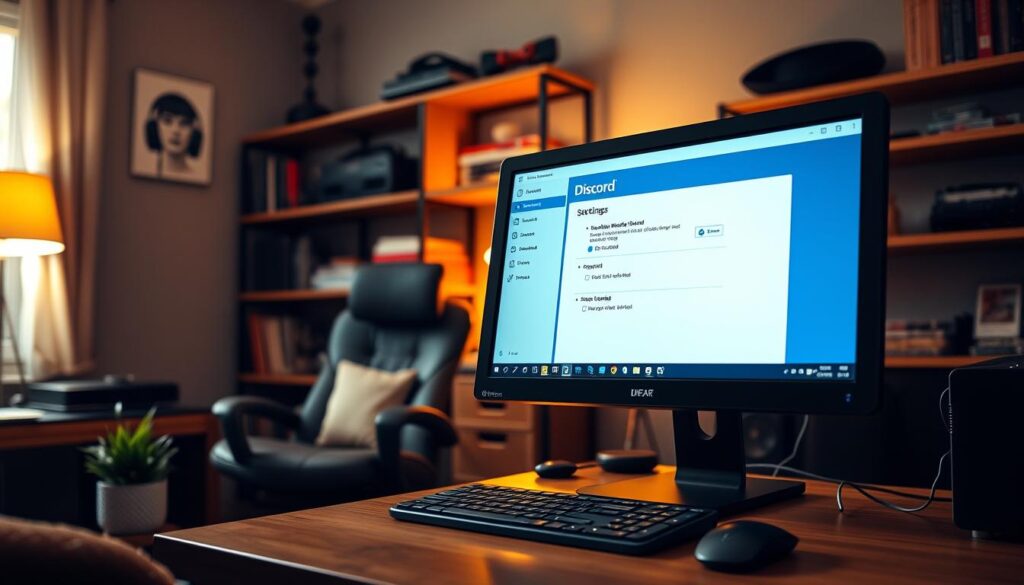
On Windows 11, Microsoft made it easier to manage startup apps. Right-click on the Start menu, select Task Manager, and then navigate to the ‘Startup’ tab to manage your startup applications. Look for Discord in the list. If it shows Enabled, click it and hit Disable. This is the core Windows 11 stop Discord from opening on startup method and it overrides even app-level settings.
Alternatively, go to Settings → Apps → Startup and toggle Discord off from there. Both paths lead to the same result — disable Discord on startup at the system level.
Windows 10
How to stop Discord from opening on startup on Windows 10 follows the same Task Manager route. Press Ctrl + Shift + Esc, go to the Startup tab, find Discord, right-click, and select Disable. If you do not see it there, check Settings → Apps → Startup.
To stop Discord from opening on startup Windows 10 for good, make sure you also check the Discord app settings (User Settings → Windows Settings) as described above. Disabling it from both places is the most reliable fix. This also answers how to stop Discord from starting automatically on Windows 10 — Task Manager plus app settings together cover all angles.
Windows 7 / 8.1
For Windows 7 and Windows 8.1 users, Task Manager’s startup tab may not be available. Instead, press Windows + R, type msconfig, and hit Enter. In the Startup tab, locate Discord, uncheck it, and then press ‘Apply’ to save the change. This is how to stop Discord from opening on startup on Windows 7 and Windows 8.1 — the old-school method that still works perfectly.
If Discord does not appear in msconfig, navigate to C:\Users\YourName\AppData\Roaming\Discord and look for a settings.json file. Open it and set “openOnStartup”: false. Save the file and reboot.
How to Stop Discord From Opening on Startup — Mac Users
How to stop Discord from opening on startup on Mac is a two-step process. First, open Discord, go to User Settings, scroll to find the Open Discord toggle, and switch it off — same as Windows.
If that does not stick, go to System Settings (or System Preferences on older macOS) → General → Login Items. Look through the list, find Discord, and click the minus (–) button to remove it.
This is the definitive way to stop Discord from opening on startup on Mac at the operating system level. After removing it from Login Items, Discord starting automatically should be completely gone.
Alternative Method Using Discord Settings on Mac
You can also stop Discord from starting up from within the app. Go to User Settings and find the right option. But, the steps might change with Discord’s updates.
| Method | Steps | Effectiveness |
| Using System Preferences | Open System Preferences, go to ‘Users & Groups,’ select your account, then click on ‘Login Items’ and remove Discord from the list | High |
| Using Discord Settings | Open Discord > User Settings > Look for relevant setting | Variable |
Discord Still Opening on Startup? Fix It
Sometimes Discord keeps opening on startup even when disabled. If you’re in the camp saying “can’t stop Discord from opening on startup” or noticing Discord is not on the startup list, here are the layers to check.
Task Manager method: Even after disabling in Discord settings, confirm it is also disabled in Task Manager (Windows) or Login Items (Mac). Both need to be off. Discord not in startup Task Manager means the entry may be hiding — search for it by name or look for any Discord-related processes.
Discord settings reset: Go back into Discord User Settings and confirm the Open Discord toggle is still off. Occasionally, after an update, Discord startup settings reset themselves. This is the most common reason Discord starts on startup even when disabled — an update silently re-enables it.
Reinstall fix: If nothing works and Discord keeps opening on startup no matter what you do, a clean reinstall often resolves it. Uninstall Discord fully, delete the leftover AppData\Roaming\Discord folder (Windows) or ~/Library/Application Support/discord (Mac), then reinstall. After reinstalling, disable Discord on startup immediately before logging in, before it has a chance to set itself up again.
How to Stop Steam and Discord from Opening on Startup?
A lot of gamers deal with both at the same time — how to stop Steam and Discord from opening on startup is one of the most common double-troubles I get.
For Steam, open the app, go to Steam → Settings → Interface, and uncheck “Run Steam when my computer starts.” That is how you turn off Steam auto launch and disable Steam on startup in one step. To stop Steam from opening on startup via Task Manager, the same disable method used for Discord applies here too — find Steam in the Startup tab and disable it. If you want to turn off Steam auto start completely, doing both the in-app toggle and the Task Manager step guarantees it won’t come back after an update.
Once you make Steam not open on startup and make Discord not open on startup, your boot time will noticeably improve. I personally shaved about 20–25 seconds off my startup time just by disabling these two apps — it is a small change with a real difference.
FAQs About Stop Discord From Opening on Startup
How do I stop Discord from opening on startup on Windows 11?
Go to Task Manager → Startup Apps tab → find Discord → click Disable. Also turn off the Open Discord toggle inside Discord’s User Settings under Windows Settings.
How can I stop Discord from opening on startup on Mac?
Open Discord → User Settings → toggle off “Open Discord.” Then go to System Settings → General → Login Items → remove Discord from the list.
Why does Discord open on startup even when I disabled it?
A Discord update may have reset the setting. Check both the in-app toggle and Task Manager (or Login Items on Mac). If the problem persists, a clean reinstall with the leftover files deleted usually fixes it.
Discord is not on my startup list — what do I do?
Check inside Discord’s own User Settings first. If it’s not showing in Task Manager either, navigate to the Discord AppData folder and manually edit settings.json to set “openOnStartup”: false.
How do I stop both Steam and Discord from opening on startup?
Disable each from their in-app settings AND from Task Manager’s Startup tab (Windows) or Login Items (Mac). For Steam, uncheck “Run Steam when my computer starts” in Steam → Settings → Interface.
Can I stop Discord from opening on startup without opening Discord?
Yes. On Windows, use Task Manager → Startup tab to disable it. On Mac, use System Settings → Login Items. No need to open Discord itself.
Conclusion
How to stop Discord from opening on startup really comes down to two things working together — turning off the in-app toggle inside Discord’s settings AND confirming it is disabled at the system level through Task Manager or Login Items. Either one alone can get overridden; both together make the change stick.
If this guide helped you, feel free to share it with others who might be facing the same issue. Small tweaks like this can make a big difference in your daily productivity.
If you have any suggestions, feedback, or ideas for future guides you would like us to cover, we would love to hear from you. Don’t hesitate to reach out through our Contact Us page and share your thoughts with our team.
Content Credit: This article was written by the expert content team at AdvertisingOutreachSEO, a digital marketing and content agency that specializes in SEO-driven tech guides, SaaS content, and high-quality outreach content.