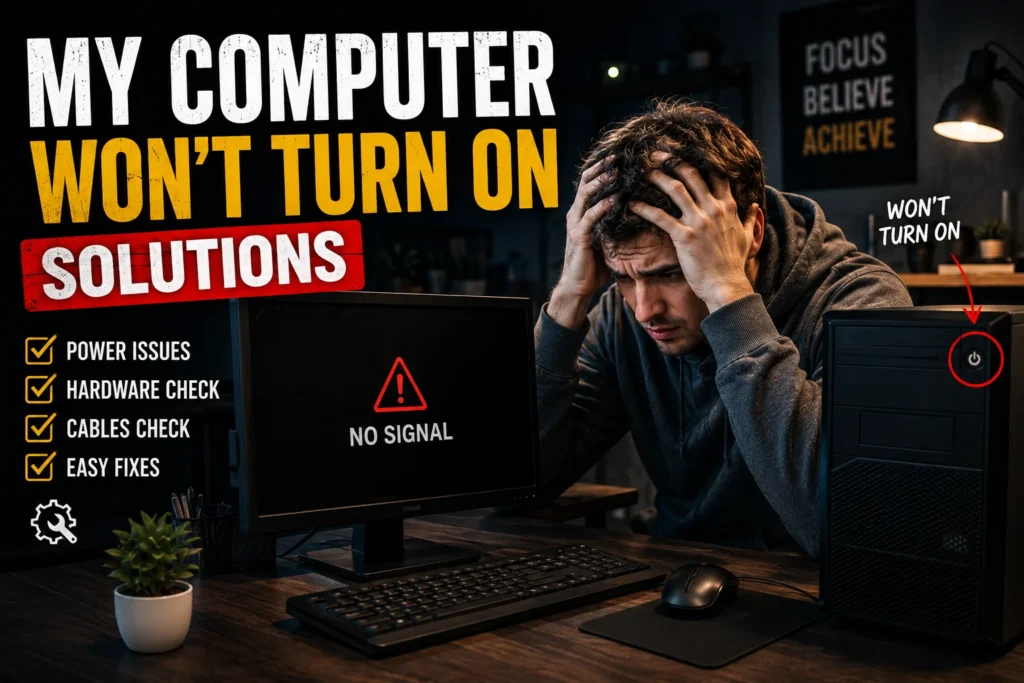
Sitting down to work and discovering that my computer won’t turn on solutions is one of the most frustrating experiences any user can face. One moment everything is fine. The next, you press the power button and receive nothing — no lights, no fan, no startup sound. Just complete silence.
I have been through this exact situation more than once, and what I learned every single time is the same thing: the cause is almost always something simple. Something you can fix yourself in under thirty minutes without any technical background and without spending money. Understanding my computer won’t turn on solutions properly means working through the problem logically rather than panicking and assuming the worst. This guide gives you every proven fix available in 2026 — written clearly, organized by severity, and built around real troubleshooting experience rather than generic advice copied from a manufacturer manual.
Table of Contents
ToggleUnderstanding Why My Computer Won’t Turn On
Before jumping into fixes it helps to understand what is actually happening when a computer refuses to power on. A computer needs three things to start successfully — reliable power reaching the machine, functioning hardware components, and a working operating system to load. When my computer won’t turn on the problem sits in one of these three areas.
The encouraging reality is that power delivery problems and software failures — which are fully fixable without professional help — account for the vast majority of startup failures. Understanding these My Computer Won’t Turn On Solutions before replacing expensive hardware can save both time and money. In many cases, the issue can be resolved using a few simple troubleshooting steps without professional repair.
Work through the solutions below from top to bottom. Each one builds on the previous and the order is intentional — simplest and most likely first, more complex and less likely later.
My Computer Won’t Turn On Solutions: Complete Fix Guide
Solution 1 — Inspect Every Single Power Connection
The first and most important of all my computer won’t turn on solutions is something that feels almost too obvious to mention — yet it solves the problem more frequently than any other fix. A connection that appears plugged in from a distance is not always making proper contact.
Desktop users should: Trace the power cable from the back of the tower all the way to where it connects to the wall. Remove it from both ends and push it back in firmly. If a power strip sits between the computer and the wall outlet switch it off completely then switch it back on. Better yet plug the desktop directly into a wall socket for this test — power strips with built in surge protectors sometimes trip internally and stop delivering power without any visible sign that anything is wrong.
Laptop users should: Disconnect the charging cable completely then reconnect it slowly until you feel it seat properly. Watch for the charging indicator light the moment you plug in. No light at all suggests the adapter itself may have stopped working — try borrowing a compatible charger from someone with the same laptop model if one is available. Charger cables develop internal breaks near the connector ends that cause intermittent or complete power failure without any visible damage to the cable. This single check resolves a surprising number of startup problems and remains one of the most effective My Computer Won’t Turn On Solutions for both desktop and laptop users.
Solution 2 — Perform a Complete Hard Reset
Electrical charge can become trapped inside a computer after an unexpected shutdown, power surge, or software crash. This residual charge prevents the machine from starting correctly until it is fully discharged — and a hard reset is the method for doing exactly that.
For laptop users: Unplug the charging cable. If your laptop model has a removable battery take it out now. Hold the power button down continuously for a full thirty seconds — count it out rather than estimating. After releasing the button reconnect the charger without replacing the battery and press the power button once normally. Many my computer won’t turn on situations caused by software crashes resolve completely at this step.
For desktop users: Locate the small switch on the back of the desktop tower near where the power cable connects. Switch it to the off position. Unplug the power cable from the wall. Hold the power button on the front of the case for fifteen seconds. Reconnect the power cable, switch the back switch to on, and press the front power button.
This fully discharges any electricity stored in the capacitors on the motherboard and is considered one of the most reliable My Computer Won’t Turn On Solutions for desktops that briefly power on before shutting down. on the motherboard and is one of the most reliable my computer won’t turn on solutions for desktops that power on briefly then shut off.
Solution 3 — Allow an Exhausted Battery Time to Recover
A laptop battery that has been fully and completely drained sometimes reaches a state where it cannot respond to the power button at all — even when the charger is connected. This is not a sign of a dead battery. It is simply a protection state that requires time and patience to exit.
Connect the charger, place the laptop somewhere you will not be tempted to touch it, and leave it for forty five minutes minimum. Do not press the power button during this period. The battery needs to accumulate enough charge to exit the protection state before the startup circuit will respond. After forty five minutes press the power button once and hold it for three seconds.
This simple charging method is one of the easiest My Computer Won’t Turn On Solutions, especially for laptops that have remained unused for several weeks or months. involving laptops that sat unused for several weeks or months.
Solution 4 — Address Overheating That Triggered Automatic Shutdown
Every modern computer contains built in thermal protection that shuts the machine down automatically when internal temperatures climb to levels that could damage the processor or other components. When this protection activates the computer will not restart immediately — it needs to cool before the thermal sensors allow startup again.
If your computer shut off suddenly during use and now will not start move it immediately to a hard flat surface where all vents have unobstructed airflow around them. Soft surfaces like beds and sofas are the most common cause of laptop overheating because they press directly against the bottom vents and block all airflow completely.
Leave the computer untouched for twenty minutes then attempt startup. If it powers on but shuts down again after a few minutes overheating is confirmed as the ongoing cause. The vents need cleaning with compressed air and in some cases the cooling fan itself may need replacement. Overheating is one of the most overlooked causes covered in My Computer Won’t Turn On Solutions, and regular cleaning can prevent this issue from happening again that gets misdiagnosed as hardware failure constantly.
Solution 5 — Disconnect Every External Device
External devices connected to a computer can interfere with the startup sequence in ways that are not immediately obvious. A USB drive, external hard drive, or even a phone plugged in for charging can confuse the boot process and prevent the operating system from loading — which presents as my computer won’t turn on even though power is actually reaching the machine.
Unplug every single device connected to the computer before attempting startup — USB drives, external monitors using separate power, printers, scanners, webcams, and anything else connected through any port. Leave only the power cable connected. Attempt startup with nothing else attached. If the machine boots successfully reconnect devices one at a time to identify which one was causing the conflict.
Solution 6 — Repair the Windows Startup Process
When a computer powers on — fans start, lights activate — but the screen remains dark or shows an error message, the hardware is functioning but the operating system has become corrupted. Windows boot corruption is one of the most common my computer won’t turn on experiences and it is fully fixable without reinstalling Windows or losing any files.
Modern versions of Windows have a built in self repair system that activates automatically when it detects startup failures. To trigger it deliberately hold the power button until the machine shuts off then press it again to start. Repeat this forced shutdown sequence three times. On the fourth startup attempt Windows will enter the Automatic Repair environment instead of trying to load normally.
From the Automatic Repair screen select Troubleshoot then Advanced Options. Try Startup Repair first — it scans and fixes corrupted boot files automatically. If Startup Repair does not resolve the issue try System Restore from the same menu which rolls Windows back to a previous working state without affecting personal documents photos or other files.
Solution 7 — Reseat Internal RAM Modules
For desktop computer users who are comfortable opening the case RAM that has shifted fractionally in its slot is a remarkably common cause of startup failure. The computer powers on for a moment then shuts off or produces no display output at all because the memory modules are not making reliable contact with the motherboard.
Switch off and unplug the desktop completely. Open the side panel. Locate the RAM modules — the flat rectangular sticks inserted vertically into slots on the motherboard. Press outward on the small plastic clips at both ends of each module until the stick pops upward slightly. Remove it carefully. Look at the gold contact edge at the bottom of the module and gently clean it with a dry soft cloth. Reinsert the module and press down firmly until both clips snap back into place. This is one of the my computer won’t turn on solutions that costs nothing and works often.
Solution 8 — Replace the CMOS Battery
Every desktop and many laptops contain a small round battery on the motherboard — roughly the size of a large shirt button — that maintains BIOS settings and the system clock when the machine is powered off. When this battery reaches the end of its life after three to five years of use it can cause startup failures, incorrect date and time displays, and BIOS reset errors.
The replacement is almost universally a CR2032 battery available at any pharmacy or supermarket for under two dollars. On desktop computers it sits in a visible circular holder on the motherboard and lifts out with gentle pressure. Remove it, insert the new one with the positive side facing upward, and attempt startup. If an old CMOS battery was the cause of my computer won’t turn on issues the machine will start normally immediately after replacement.
Quick Reference: My Computer Won’t Turn On Solutions by Symptom
| What You See | Most Likely Cause | Best First Fix |
| Completely silent — nothing at all | Loose power connection | Check every cable end |
| Powers on for 2 seconds then off | RAM fault or overheating | Cool down then reseat RAM |
| Fans running but no display | Display or GPU connection | Check monitor cable |
| Windows error on startup | Boot file corruption | Windows Automatic Repair |
| Charging light on but will not start | Deeply drained battery | Charge 45 minutes undisturbed |
| Beeping sounds during startup | Hardware communication error | Reseat RAM and GPU |
When Professional Repair Makes Sense
The my computer won’t turn on solutions in this guide resolve the vast majority of startup failures at home. There are however situations where professional assessment is the right decision.
Contact a repair professional when you detect any burning smell coming from the computer — power the machine off immediately and do not attempt to restart it as internal damage may have occurred. Seek help when all eight solutions above have been completed in order without result. Seek assistance when visible physical damage exists on any internal component or when the power button itself appears physically broken or stuck.
Preventing My Computer Won’t Turn On Problems Going Forward
Fixing the problem today is only half the solution. Preventing it from recurring matters equally. Always use a surge protector between your computer and the wall — power spikes from storms or grid fluctuations are a leading cause of component damage that leads to startup failure. Keep all air vents clear of dust by cleaning with compressed air every six months. Shut down properly through the operating system rather than using the power button to force shutdown except in genuine emergencies. Keep Windows and all drivers updated — failed or incomplete updates are a leading cause of boot corruption. Create a system restore point before installing new software or making significant changes to the system.
Frequently Asked Questions
Why does my computer won’t turn on even when it is plugged in?
When my computer won’t turn on despite confirmed power connection the most common causes are a faulty charging adapter, a deeply drained laptop battery in protection mode, a failed desktop power supply unit, or a corrupted Windows startup process. Begin with the hard reset solution before moving to anything more complex.
How do I fix my computer that won’t turn on but makes a clicking noise?
Clicking sounds during a startup attempt often indicate a failing hard drive rather than a power problem. Back up data immediately if the machine starts at all and replace the drive before complete failure occurs. If clicking comes from the power supply area a PSU replacement is needed.
Can a Windows update cause my computer won’t turn on?
Yes. Incomplete or corrupted Windows updates frequently cause boot failures that present exactly like a hardware problem. The Windows Automatic Repair method described in Solution 6 above specifically addresses update-related startup failures and restores normal operation without data loss in most cases.
How long should I charge my laptop before trying to turn it on?
When my computer won’t turn on due to a completely drained battery leave it connected to the charger for a minimum of 45 minutes before pressing the power button. Attempting startup too early during recovery from complete discharge often results in the machine failing to respond which causes unnecessary concern.
What is the first thing to check when my computer won’t turn on?
The very first my computer won’t turn on solution to attempt is always checking every power connection — both ends of every cable between the computer and the wall outlet. This resolves the problem in a significant number of cases and takes under sixty seconds to complete.
Conclusion
Every time my computer won’t turn on the solution is closer than it feels in that first moment of silence. Eight proven fixes — from checking a power cable to reseating RAM to repairing Windows startup — cover the overwhelming majority of situations any user will ever face.
Work through each my computer won’t turn on solution in the order presented here and you will almost certainly identify the cause and restore your machine to full operation without professional help and without spending significant money. The computer that feels completely lost is rarely as lost as it appears.